Enjoy $10 off every $100 spend. T&Cs apply.
Buying Guide
How to Choose the Best Laptop for 3D Modelling: A Practical Buying Guide
Do You Really Need a Heavy Workstation? Finding the Right Laptop for 3D Modelling
Source: Shutterstock
“I must get the most expensive, heavy-duty setup to get the best performance.”
Is this what you tell yourself every time you browse for tech? Before you commit to a bulked-up laptop that breaks the bank, take a step back.
The 3D Artist's Reality When Buying a Laptop
Source: Shutterstock
There is one universal truth across all creative fields: it’s rarely about having the most expensive equipment. Take photography, for example. It’s common knowledge in the photography community that photographers often obsess over upgrading camera gear, yet top pros regularly shoot breathtaking images on decade-old cameras. The lesson? Focus on honing your craft, not overbuying your tools.
Falling into the ‘over-specifying trap’ is easy, and there’s no judgement here. It only happens because you care and want to be great at what you do. But when learning 3D modelling as a working adult, you don't need a massive industrial workstation from day one. What matters most is choosing a machine that respects your limited free time, fits your professional routine, and eliminates learning friction.
What Makes a Laptop Capable of 3D Modelling?
Source: Shutterstock
When balancing a 9-to-6 job with evening skill-building, you can't afford a system that stutters, overheats, or slows down mid-tutorial. Instead of getting lost in complex technical specifications, focus on a baseline setup that handles modern creative learning smoothly:
- Dedicated Graphics (GPU & VRAM): The GPU handles real-time viewport shading and ray tracing. Aim for a dedicated NVIDIA RTX 40-series GPU with at least 6GB to 8GB of VRAM for fast CUDA/OptiX rendering in tools like Blender, or an Apple Silicon M-series chip (Pro/Max) with integrated high-bandwidth unified memory. Avoid basic integrated graphics, which quickly choke on complex meshes.
- Sufficient System Memory (RAM): 3D software consumes memory rapidly, especially when you have high-poly models, unbaked modifiers, and multiple browser tabs open for video courses. Treat 16GB of RAM as the bare minimum, with 32GB strongly recommended if you want seamless multitasking without system hitches.
- Fast, High-Capacity Storage (SSD): Project caches, 4K/8K texture packs, and render exports add up fast. Skip conventional hard drives entirely and look for at least a 1TB NVMe SSD to guarantee lightning-fast file loading and plenty of breathing room for growing asset libraries.
- Colour-Accurate Display: A stunning 3D model means little if your lighting and materials look washed out on other screens. Ensure your display offers at least 100% sRGB or DCI-P3 colour gamut coverage with crisp resolution (FHD minimum, ideally 2K/QHD) for accurate texture painting and visual consistency.
Key Challenges in 3D Workflows and How Modern Hardware Solves Them
Source: Shutterstock
Here is how three modern laptop designs solve these friction points faced by working adults when picking up a new technical skill:
Challenge 1: Screen Swapping and Mental Fatigue
When you sit down to practise 3D modelling after a full 9-to-6 shift, willpower is already low. Trying to split a single screen or constantly alt-tabbing between a video lesson and your workspace creates mental strain, making evening learning feel like a chore.
- The Solution (ASUS Zenbook DUO): Featuring a built-in dual-screen design, this setup gives you an effortless multi-monitor layout. Keeping your video tutorial open on the lower display while actively building in your viewport on the upper display reduces cognitive fatigue and keeps your momentum going.
Challenge 2: Performance Drop-Off & Battery Anxiety on the Go
Being forced to hunt for available power outlets or dealing with sudden slowdowns the moment you unplug ruins the flexibility of a mobile routine.
- The Solution (Apple MacBook Pro M4): Designed for exceptional energy efficiency, this platform provides sustained performance and long battery endurance on unplugged power.
Challenge 3: System Slowdowns Eating into Your Limited Free Time
When your creative projects become more detailed and complex, underpowered hardware can cause long loading and rendering times that stall your evening practice sessions.
- The Solution (Lenovo Legion Pro 7): Built with high-performance processing hardware and robust cooling systems, this heavy-duty laptop handles complex processing tasks effortlessly.
Matching the Right Laptop to Your Daily Routine

Source: Shutterstock
Rather than forcing a single choice, finding the ideal laptop for 3D modelling beginners comes down to identifying how and where you work best. Here is how these setups at COURTS fit different learner profiles:
| Profile and Laptop | Key Strengths | How It Fits Your Workflow |
|---|---|---|
| For Multitasking: ASUS Zenbook DUO |
|
|
| For Mobility: Apple MacBook Pro M4 |
|
|
| For Power: Lenovo Legion Pro 7 |
|
|
Buyer's Checklist: What to Look for Before You Commit

Source: Shutterstock
Before investing in your setup, review this quick checklist to ensure your laptop aligns with your real-world needs:
- Software & Operating System Compatibility: Confirm that the software tools you plan to learn are fully supported by your chosen operating system.
- Screen Space & Layout: Decide whether a dual-screen design, a high-efficiency single screen, or a large display best fits your learning style.
- Memory & Multi-Tasking Headroom: Ensure your system has enough memory to run creative software and web browsers at the same time without slowing down.
- Portability vs. Power: Choose an efficient setup if daily mobility and battery life matter most, or a high-power machine if raw processing speed is your top priority.
Experience the Power First-Hand with COURTS
Source: Shutterstock
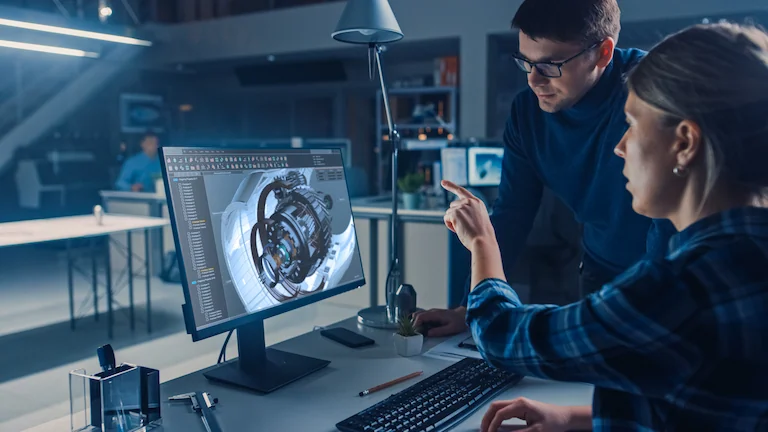
Starting anything new brings friction. The key is finding the right balance for your lifestyle. Whether you need a versatile laptop that seamlessly bridges your everyday work with evening practise, or a high-powered machine built to handle heavy 3D rendering without compromise, modern hardware eliminates the tech friction so you can focus on creating. And when you're ready to take your designs beyond the screen, pairing your setup with a high-speed 3D printer, like the Bambu Lab series, completes your setup, turning your digital models into physical prototypes.
Want to see how these laptops feel in your hands or explore Bambu Lab 3D printers up close before deciding? Visit any COURTS store to test them out in person!